

External API Integration
Introduction
Ecovolt provides a secure and reliable authentication system that allows developers to connect their applications to Ecovolt services using a simple API key–based workflow. Before you can access protected endpoints you must first authenticate your requests with your Ecovolt API key.
This guide explains how to obtain your API key, how to include it in your requests, and how Ecovolt validates each call. After you complete authentication, your application can interact safely with Ecovolt while ensuring that only authorized clients have access to your resources.
Using Ecovolt authentication, you can:
- Authenticate API requests with a single secure API key
- Access Ecovolt endpoints for data retrieval, updates, and device interactions
- Protect your application through encrypted communication and key validation
- Integrate quickly using standard HTTP headers and lightweight request formats
Whether you are building a mobile application, a backend service, or a custom automation workflow, this documentation will guide you through each step required to authenticate with Ecovolt and begin making API calls confidently.
Before You Begin
Before you start using Ecovolt authentication, make sure you have the following requirements completed. These prerequisites ensure you can follow the examples and interact with the Ecovolt API without interruptions.
Ecovolt account
You need an active Ecovolt account to access the API and manage your authentication settings. API keys can be generated by both users and admins, but the level of access depends on who creates the key. Keys generated by admins have higher organizational permissions, while keys created by standard users are limited to their assigned access level. If your organization does not yet have an Ecovolt account, please contact our team to get started.
Access to the Ecovolt dashboard
The Ecovolt dashboard is where you will generate and manage your API keys. You must be able to sign in to the dashboard in order to generate your key, check API activity logs, and setup Cross-Origin Resource Sharing (CORS).
Basic knowledge of HTTP requests
You should be familiar with how to send HTTP requests using tools such as Postman, or your preferred programming language. This includes understanding request methods, headers, and response formats.
Once you have these prerequisites in place, you are ready to continue to the next section and obtain your Ecovolt API key.
Getting Your API Key
API keys are required to authenticate requests to Ecovolt endpoints. Depending on your role within the organization, the level of access your key provides may vary. Admin-generated keys have higher organizational permissions, while user-generated keys are restricted to the permissions assigned to that user.
Follow these steps to obtain an API key:
Step 1: Sign in to the Ecovolt dashboard
Go to the Ecovolt dashboard and sign in with your Ecovolt account credentials.
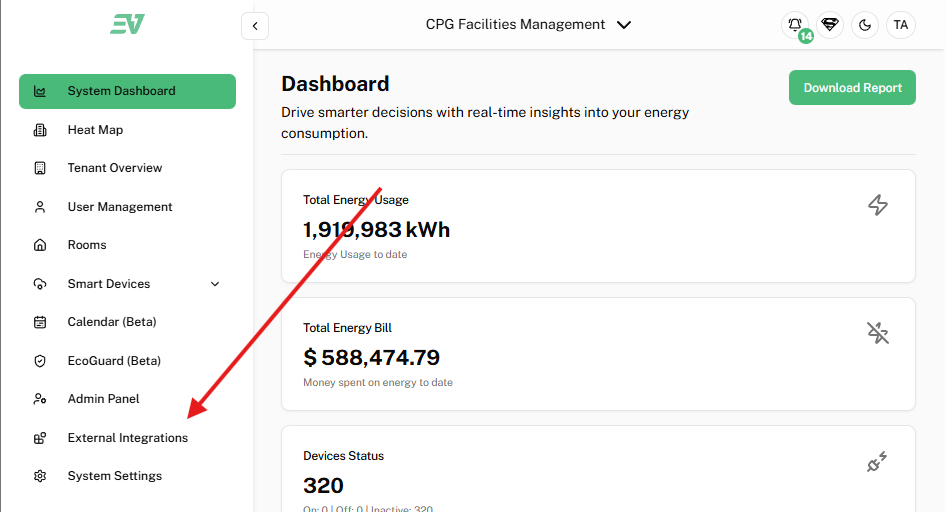
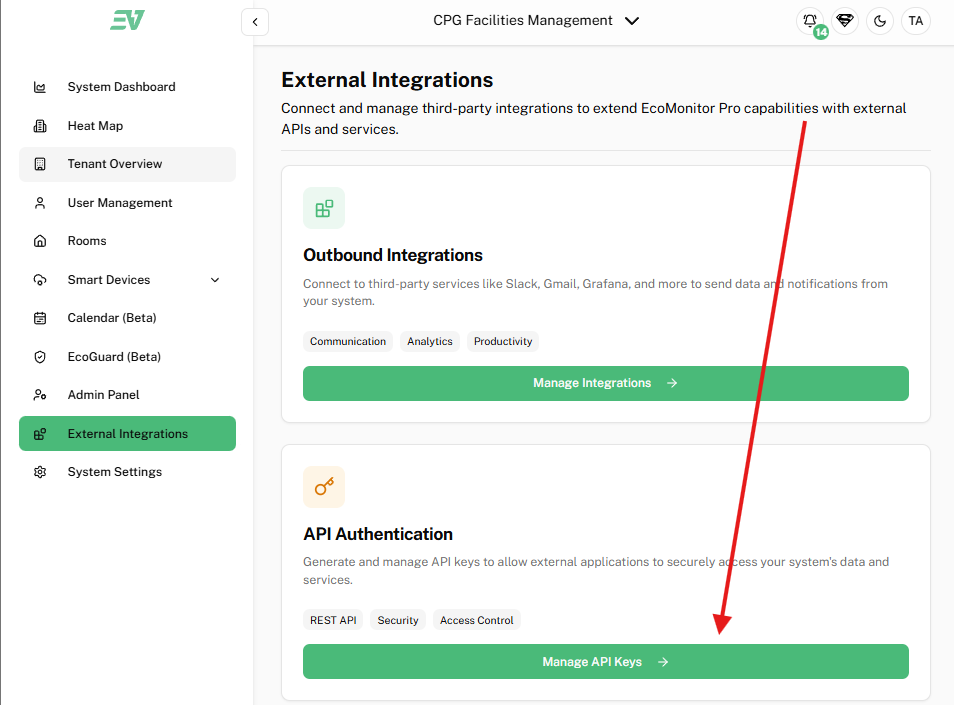
Step 2: Navigate to API Keys
In the dashboard menu, select External Integration > Manage API Keys.
Step 3: Generate a new API key
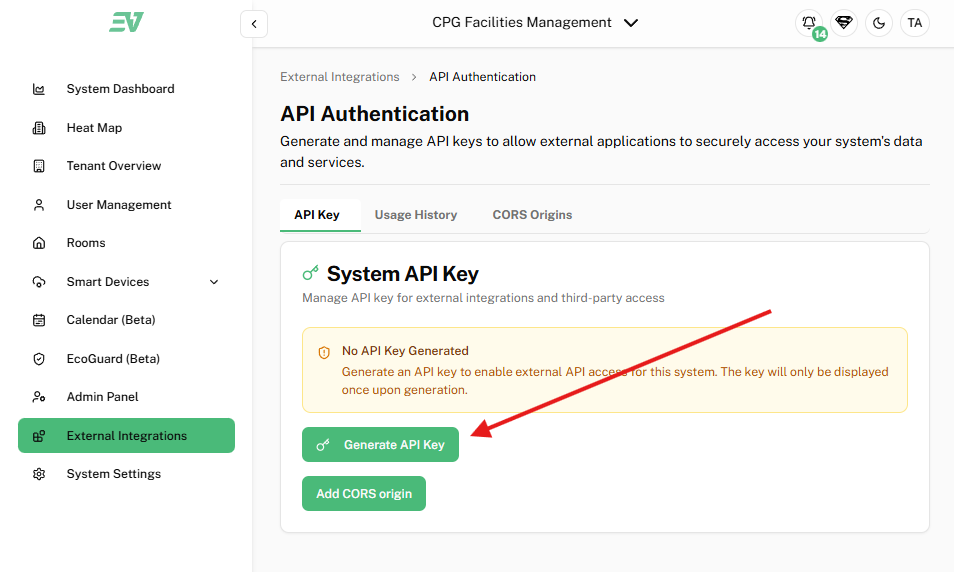
Click Generate API Key.
Remember that keys generated by admins have broader access than those generated by standard users.
Step 4: Save your API key securely
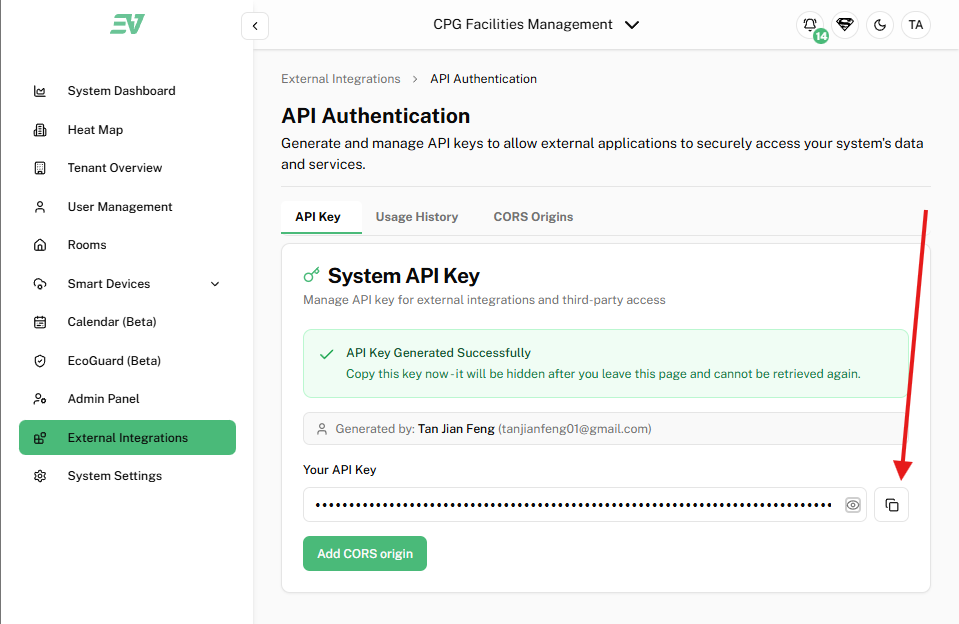
Once the key is generated, copy it immediately. You will not be able to view the key again for security reasons. Store it securely, such as in an environment variable or a secret management system.
Making Your First Authenticated Request
Once you have your Ecovolt API key, you can start making authenticated requests to access protected endpoints. API keys are included in the Authorization header of each request.
API Key
Your key from the Ecovolt dashboard. Admin-generated keys have higher organizational permissions, while user-generated keys are limited to assigned access.
System ID
Most endpoints also require a System ID to identify which system or device to access. You can find your SystemId:
- From the URL when viewing a system in the Ecovolt dashboard.
- From the Manage API Keys page.
Include the System ID as a query parameter or path variable in your requests.
Once you have your Ecovolt API key and System ID, you can start making authenticated requests to access protected endpoints.
Base URL
All Ecovolt API requests use the following base URL:
Code
Example Request
Code
Explore More Endpoints
After successfully making your first authenticated request, you can use the Ecovolt API Reference to explore all available endpoints. The API Reference provides:
- Complete endpoint URLs and request methods
- Required parameters, including System ID or other identifiers
- Request headers and example responses
- Notes on scopes, permissions, and error handling
Use the API Reference to integrate additional functionality into your applications, such as retrieving devices, plugs, system data, updating settings, or accessing real-time metrics.